(Pro) Certificates for things like first aid, safety training or annual compliance don’t last forever. Expiry dates let the verification result show clearly when a certificate is still current and when it has lapsed. You can add expiry date on the pro version of Edutain Certificate Validator.
How to Add an Expiry Date to Certificate Records
The Edutain Certificate Validator WordPress Plugin provides multiple ways to add expiry dates to certificate records. You can add an expiry date when creating a new record, update it while editing existing records, apply the same expiry date to multiple records in bulk, or import bulk records with expiry dates through a CSV file.
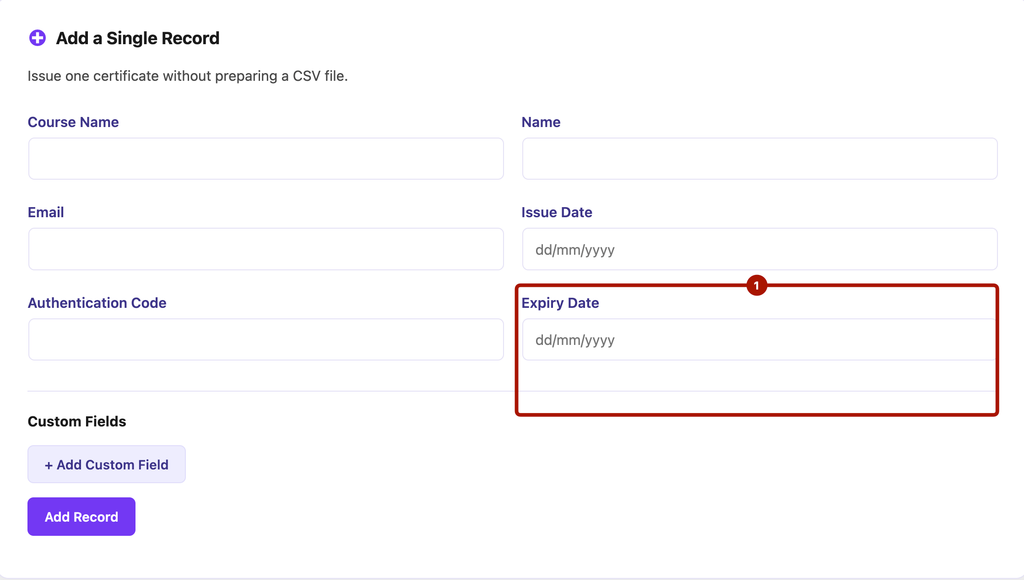
Adding an Expiry Date to a Single Record
To add an expiry date while creating a new certificate record:
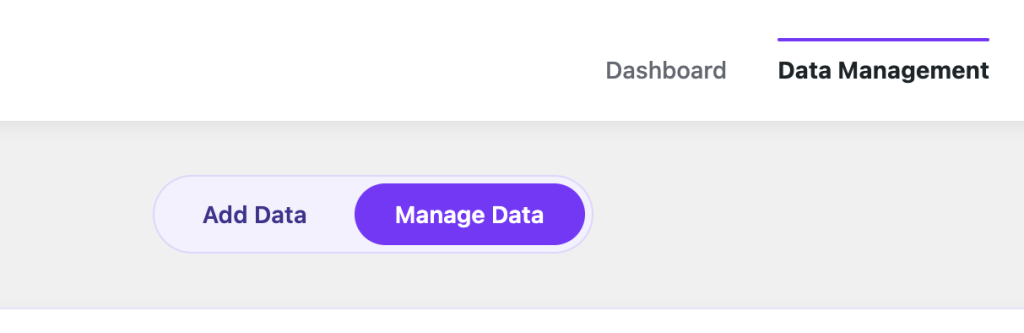
- Go to Certificate Validator → Data Management.
- Open the Add Data tab.
- Complete the single-record form.
- Enter the expiry date in the dedicated Expiry Date field.
- Save the record.
The expiry date will be stored along with the certificate details.
Adding or Updating an Expiry Date While Editing Records
You can update the expiry date of an existing certificate record from the Manage Data section.
Editing a Single Record
- Navigate to Certificate Validator → Data Management.
- Open the Manage Data tab.
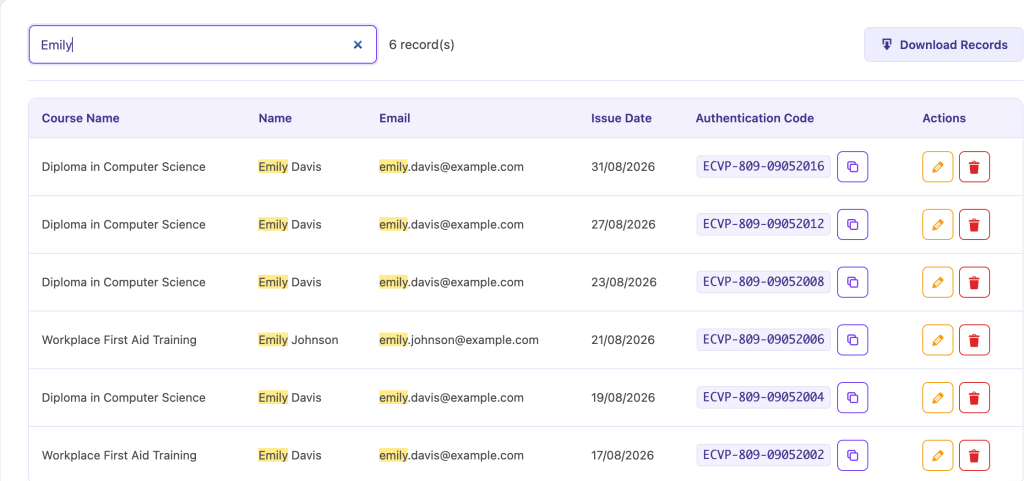
- Use the search box to locate the certificate record. You can search using the certificate holder’s name, course name, or authentication code.
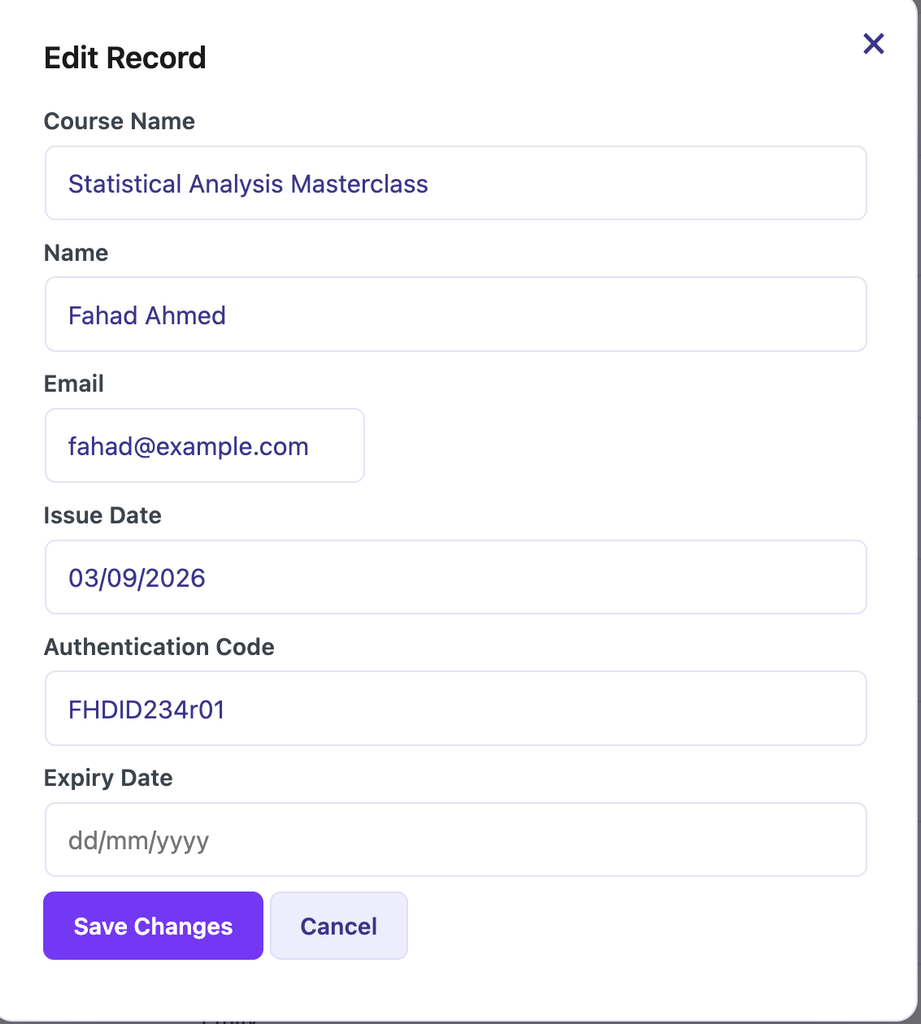
- Click Edit on the desired record.
- Add or update the expiry date field.
- Save the changes.
Updating Expiry Dates in Bulk
If you need to assign the same expiry date to multiple certificate records, you can use the bulk edit option.
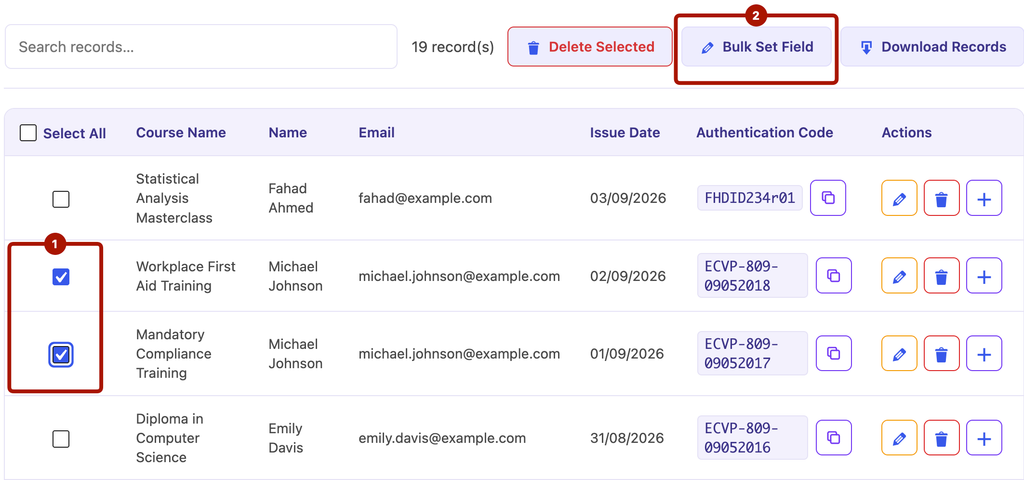
- Go to Certificate Validator → Data Management → Manage Data.
- Select the certificate records you want to update by ticking the checkboxes next to them.
- Click the Bulk Set Field option.
- Select the expiry date field and enter the required date.
- Apply the changes.
The selected records will be updated with the same expiry date.
Adding Expiry Dates Through a CSV File
When you are importing certificate data from a CSV File, you can add expiry date on multiple records. All you need to do is to include an Expiry Date column in your CSV file (using dd/mm/yyyy or yyyy-mm-dd). Please note that this is a pro feature and won’t work in the free version.

What verifiers see
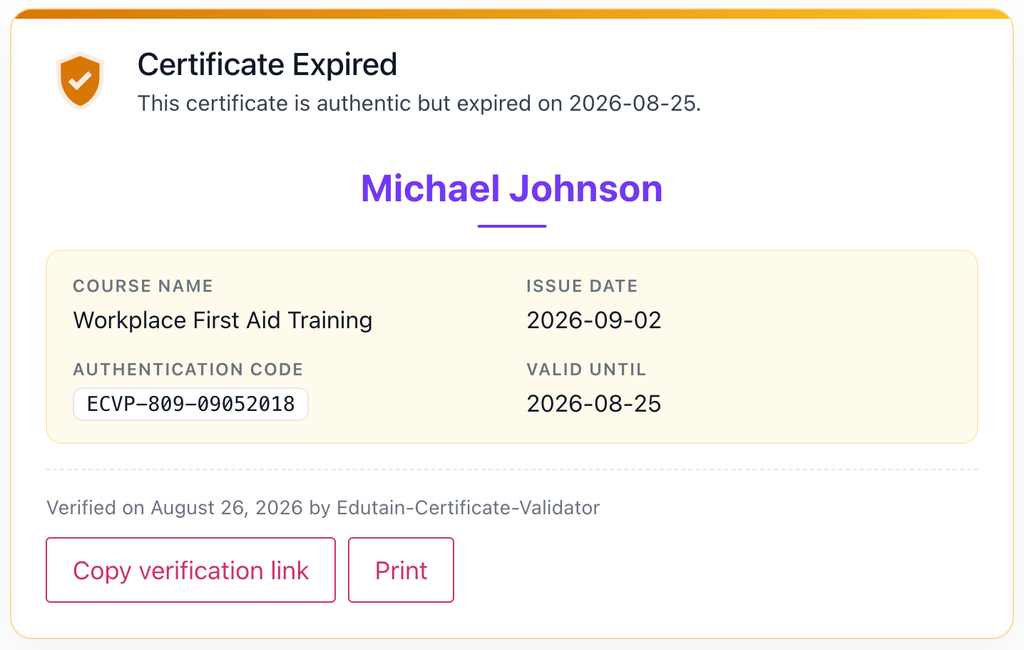
Once an expiry date has passed, the public verification result shows the certificate as expired, so an employer checking it knows the training needs renewing. A certificate with no expiry date simply never expires.
Renewals
When a learner renews, update the expiry date on their existing record (or issue a new certificate with a new code). Bulk editing makes it easy to roll a whole group’s expiry forward each year — handy for annual refresher training.


