Getting your spreadsheet columns right is the one step that saves the most time. Match these column names and your import will go through cleanly on the first try.
Required columns
Your file must include these four column headers. They can be in any order, and the names are not case-sensitive:
| Column | What it holds |
|---|---|
| Course Name | The course or qualification |
| Student Name | The learner’s full name |
| Issue Date | When they finished (or use Completion Date) |
| Authentication Code | A unique code for each certificate |
Optional column
- Course Name – The course or qualification
- Student Email — store the learner’s email if you plan to use Pro email sending later.
Date format
Completion dates must be in one of these two formats:
- dd/mm/yyyy — for example, 14/06/2026
- yyyy-mm-dd — for example, 2026-06-14
Dates that aren’t valid calendar dates are skipped and reported.
Authentication Codes must be unique
Duplicate codes are skipped during import. If you’re combining several spreadsheets, check for repeated codes first.

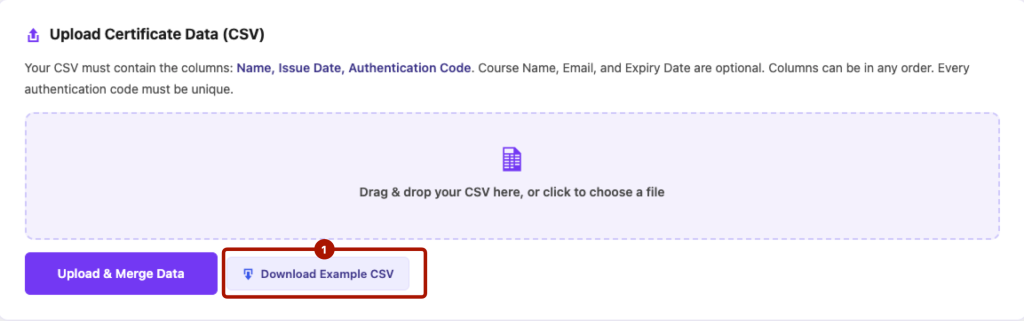
Tip: Always start from the downloaded example CSV. It already has the headers spelled and spaced correctly, which removes the most common cause of failed imports.
Extra columns (Pro)
With Pro active, you can add more columns and they’ll be stored against each record:
- You can set Expiry Date to your certificates.
- Certificate Status can also be set, using the pro version.
- Any other extra column becomes a custom field, up to 30 per record.


