(Pro) If a certificate was issued in error, or needs to be withdrawn, you can change its status so the public result reflects that — without deleting the record.
The three statuses
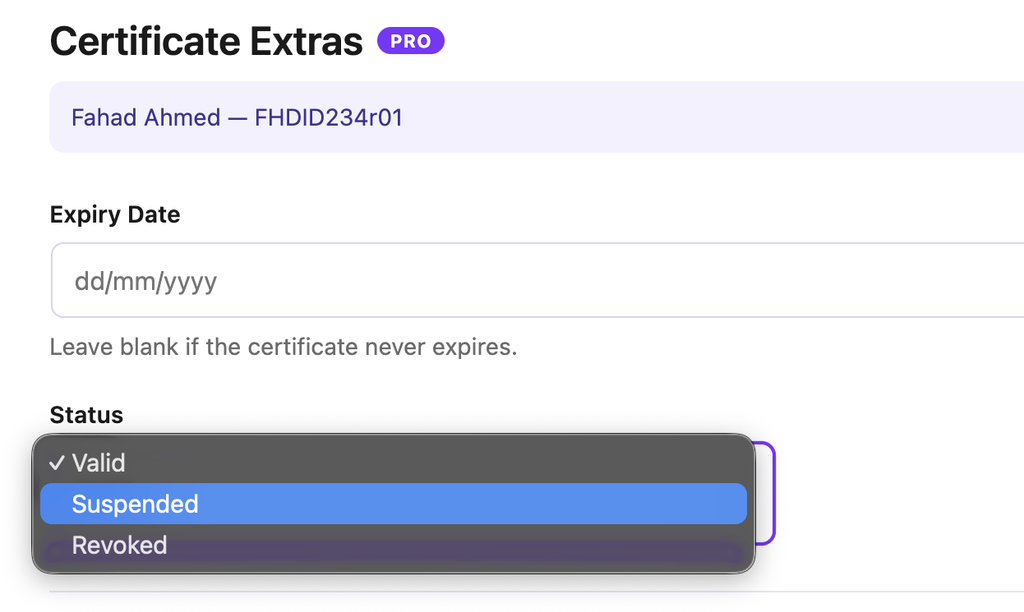
- Valid — the normal state; the certificate verifies successfully.
- Revoked — permanently withdrawn.
- Suspended — temporarily withheld, e.g. pending review.
What verifiers see
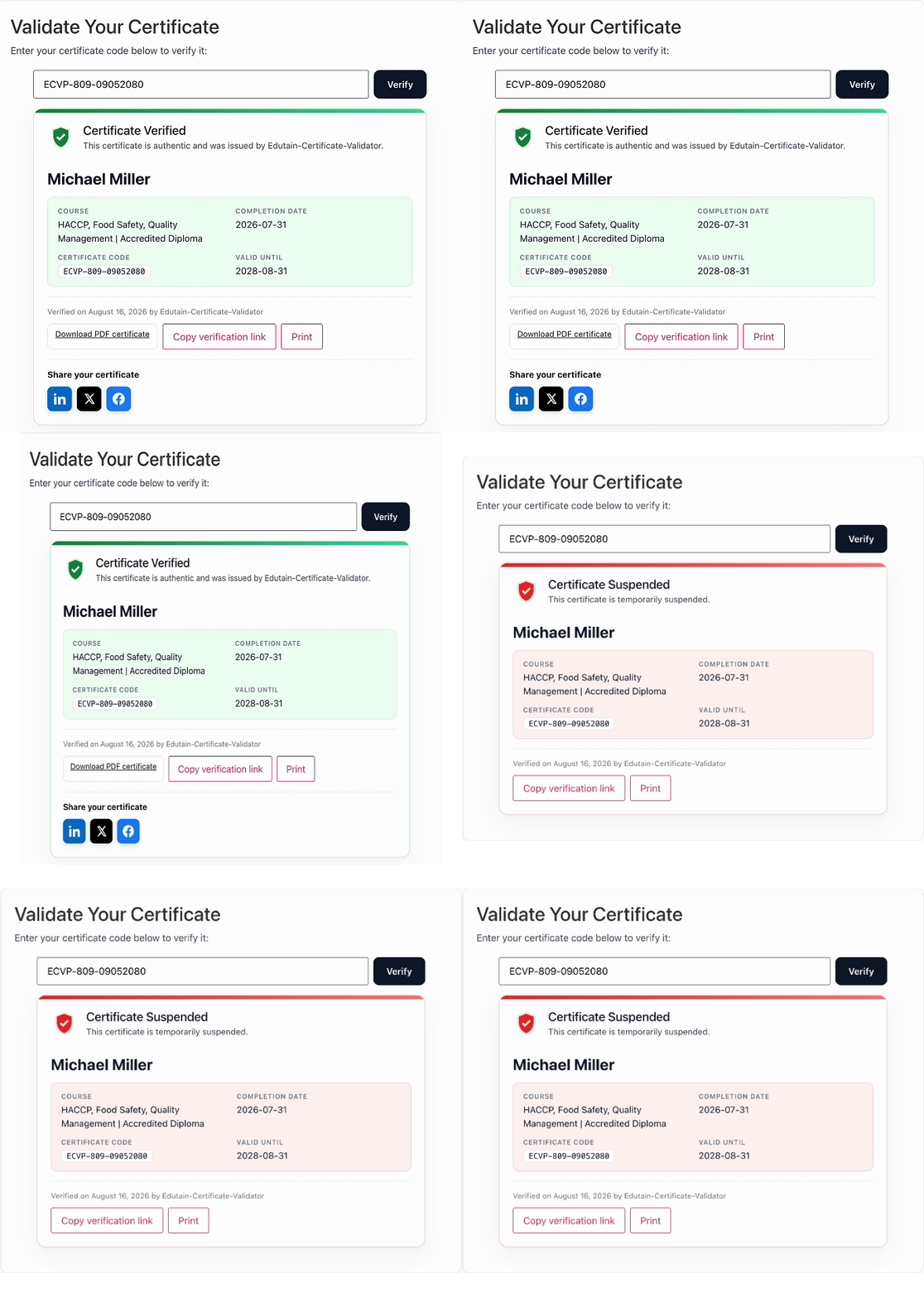
A revoked or suspended certificate shows its status clearly on the public verification page, so anyone checking it sees straight away that it isn’t currently valid. The record stays in your system, giving you a full history rather than a gap.
Changing The Status of a Single Record:
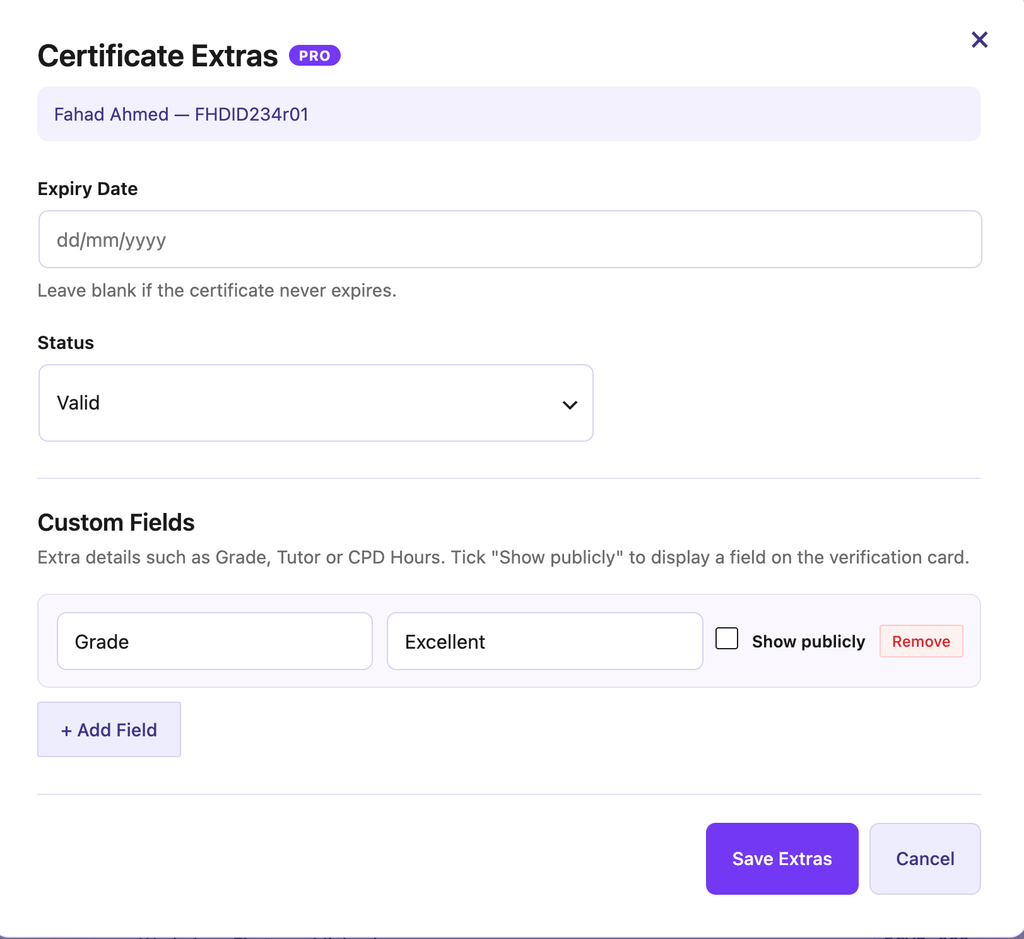
You can change the status of a single record by editing a certificate record. But, for this, you need the pro version. Simply, go to Certificate Validator → Data Management and navigate to the Manage Data tab. Choose the certificate record you want to modify, then click the + icon beside the record. You can then add new custom fields, update the expiry date, or change the certificate status using the dropdown menu (for example, from Valid to Suspended or Revoked). After making the required updates, click Save Extras to apply and save the changes.

Changing The Status of Multiple Records
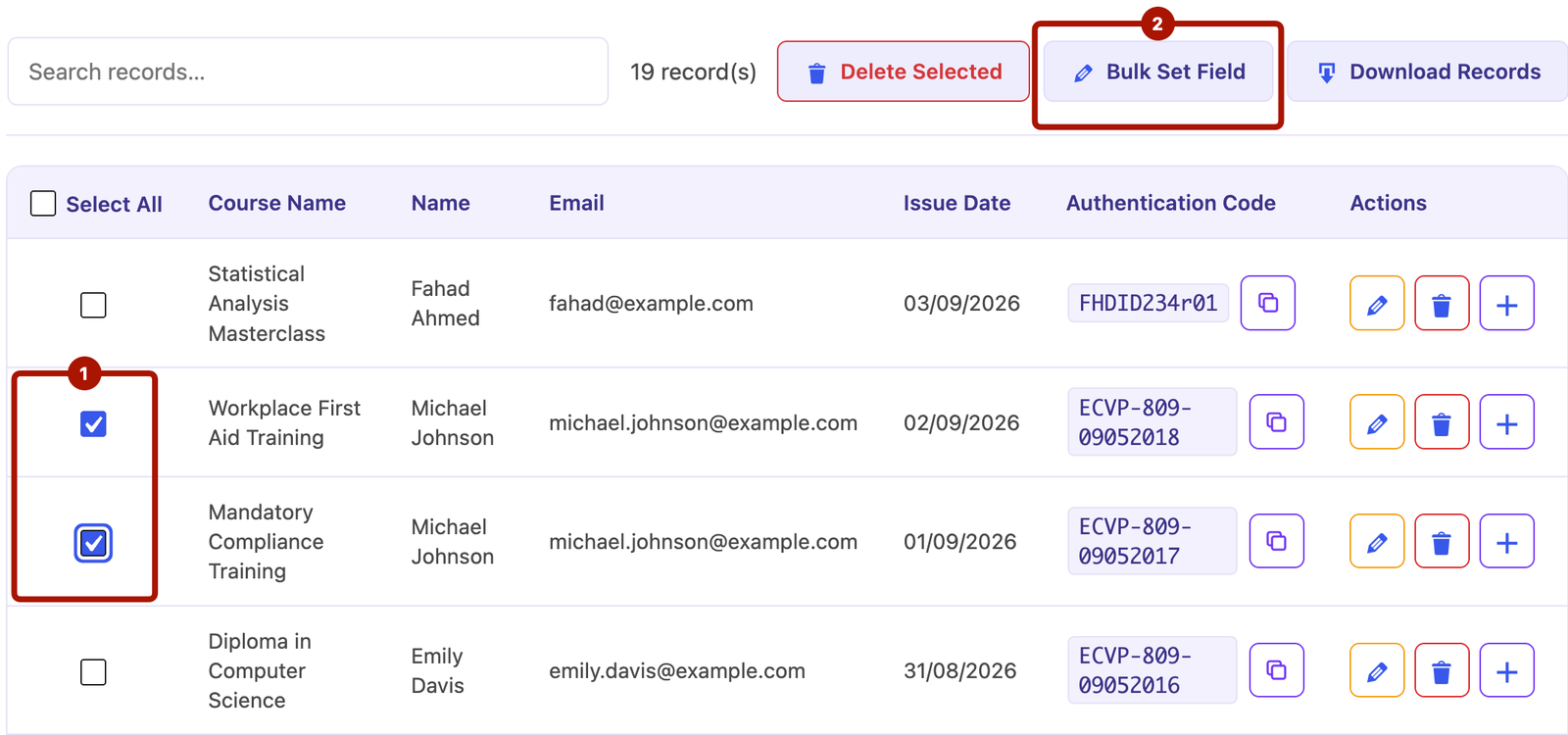
The ability to bulk edit certificate records let you change the status of multiple records at once. Here’s how to do it:
- Go to the Manage Data tab.
- Tick the checkboxes next to the records you want to change (or select all).
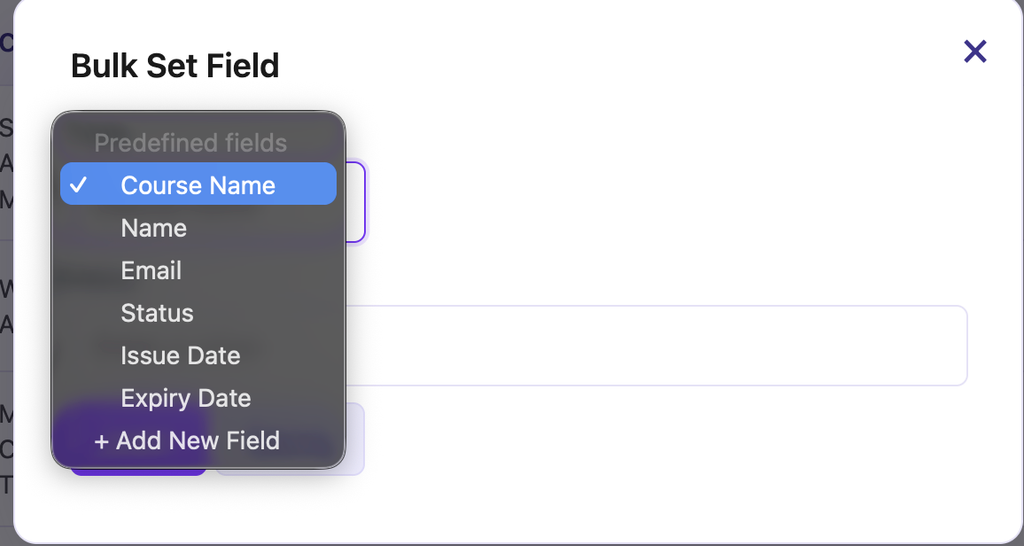
- Click the Bulk Set Field button.
- Select Status from the list of available predefined fields. If the field does not exist, create Status as a new custom field.
- Enter the required status value (Valid, Revoked, or Suspended) in the value field.
- Finally, click Apply to save the changes and update the selected records.

Setting The Status of Multiple Records Via CSV File
If you are using the pro version, you can simply define the status of multiple or all your records when you are adding a large number of certificate records using the Upload Certificate Data (CSV) method. To do this, add a Certificate Status column after the first five required columns in your CSV file, then enter the appropriate status value for each certificate record. The status will be applied automatically during the upload process.
Downloads: PDF download is only offered for certificates that are currently valid — expired, revoked and suspended certificates don’t show a download option.


