(Pro) As well as verifying certificates, Pro can generate a polished PDF certificate that carries your branding — and, optionally, let learners download it themselves after verifying.
What a generated PDF includes
- The learner name, course and completion date from the record.
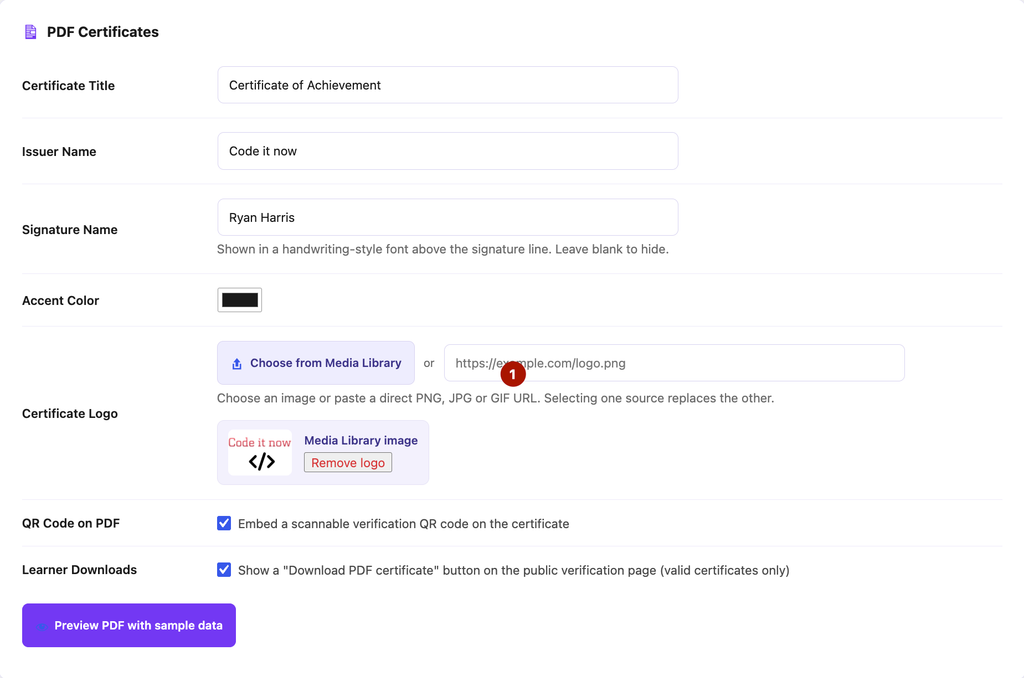
- Your logo, accent colour and signature name.
- An embedded QR code linking to the certificate’s verification page.
Enabling QR Codes in Branded Certificates
to embed QR codes on the branded certificate, simply go to the Settings menu, find the PDF Certificates section and tick mark the Embed a scannable verification QR code on the certificate option. Finally, click Save Settings from the bottom of the page.
Letting learners download their PDF
You can optionally show a download button on a valid verification result, so a learner who verifies their certificate can save a branded PDF copy. This button appears only for certificates that are currently valid — never for expired, revoked or suspended ones. To do this, simply tick mark the Show a “Download PDF certificate” button on the public verification page (valid certificates only) options and Save Settings from the settings menu.
The PDF is produced in a landscape certificate layout, generated entirely on your own site.

A note on languages
Generated PDFs work best with Latin-based text. Characters outside that range in a name, course title or signature may be transliterated or dropped in the PDF only — your certificate records and the public verification page handle all languages normally.


