(Pro) Pro can email certificates to your learners using the Student Email stored on each record — either one at a time, or to a whole group in the background.
Before you start
- Each record you want to email needs a valid Student Email value. You can add student email address when you are adding a record manually or through bulk upload via CSV file.
- Set up your email subject and message in Pro Settings, using the placeholders.
Sending to one learner
First, locate the Email Management section from Certificate Validator → Settings → General tab. This section looks like this:
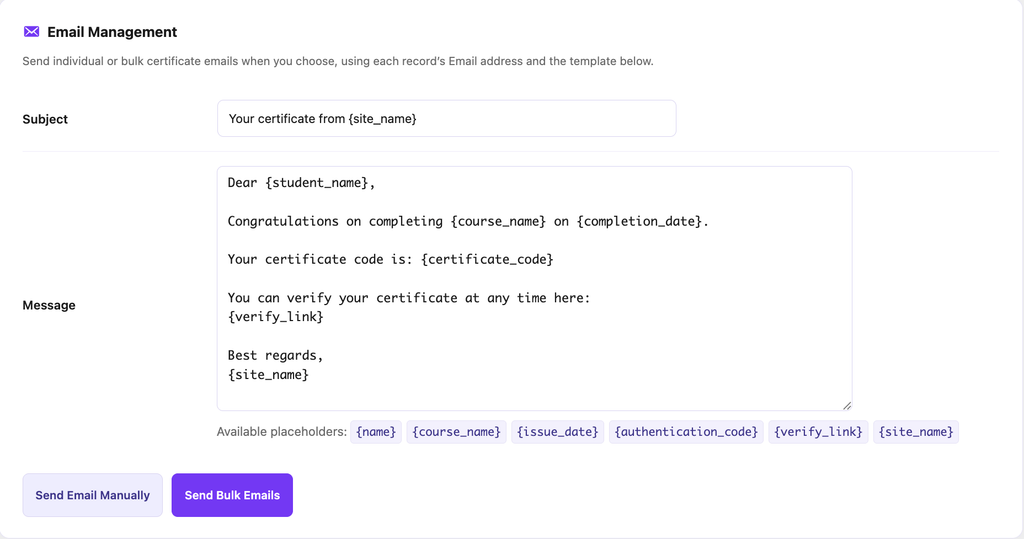
This Email Management section in the Settings menu will let you finalize the subject line and body email. To learn how to set up your email subject and message using available placeholders, click here.
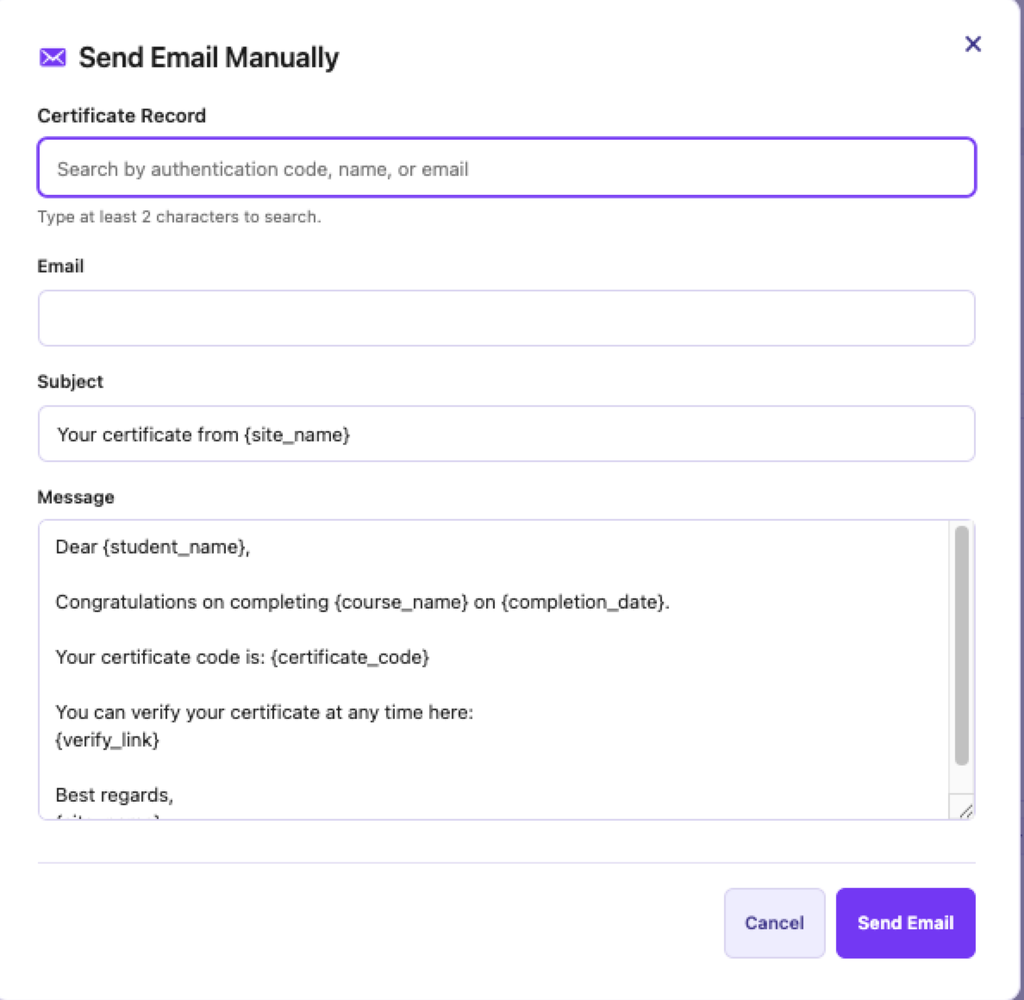
Now, if you notice, you will see two buttons at the bottom of the section. If you click, Send Email Manually, then a pop up menu will appear. From there, you can search the certificate road by authentication code, student name, course name or student email. You can customize your message and click send email to send email to the individual student. If you have already added student email in your certificate record, then this email will appear in the email section. If you want to send email to a different email address, you can do so by replacing this email with the new email address. The short codes will fetch your certificate data from your record and this way, the email will be customized. Using this method, you can send email to individual student/ user.
Sending to many learners
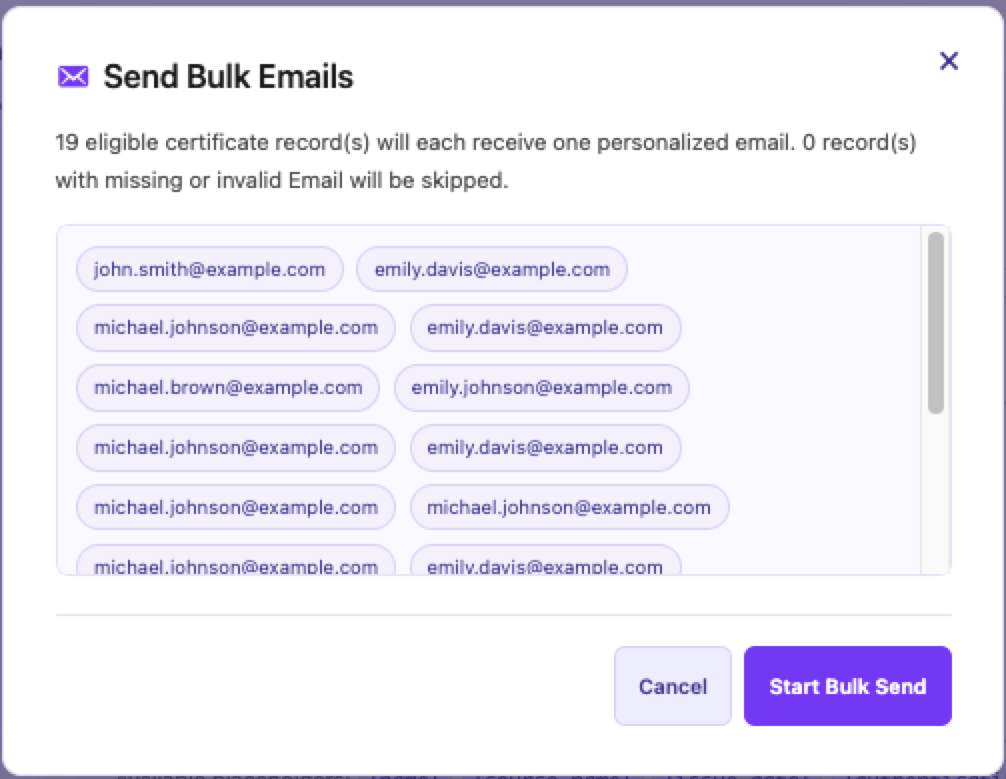
To send emails to all eligible users at once, click the Send Bulk Emails button. The system will automatically identify and shortlist all certificate records that are eligible for bulk email delivery.
Eligible certificate records are those that contain a valid email address. If a certificate record was added without an email address, it will not be included in the Send Bulk Emails list. However, you can still send an email to that learner using the Send Email Manually option, where you can manually enter the recipient’s email address.
When you click Send Bulk Emails, a preview window will appear showing the total number of eligible email addresses selected for the bulk send. After reviewing the count, click Start Bulk Send to begin the process.
The emails will be added to a queue and sent automatically in the background in batches of 15. This ensures that large email campaigns are delivered smoothly without causing timeouts or exceeding your hosting provider’s email sending limits.
Good to know
- Email sending is always manual. Adding or importing records never sends email automatically — you’re always in control of when messages go out.
- Records without a valid email address are skipped.
- Email is sent through WordPress (wp_mail()), so delivery depends on your site’s email setup. If your site struggles to send email reliably, an SMTP plugin or email service will improve deliverability.


