When John (John is a fictional name used to protect privacy) first opened his fitness centre, managing memberships was straightforward.
Like many small gyms, he started with a simple process. Every new member received a physical membership card, and the team maintained basic information in a spreadsheet.
The system worked because the gym was small.
John knew most members personally. The reception team could easily remember regular customers, check records quickly, and handle membership updates without much difficulty.
Over time, however, the gym grew.
More people joined. The number of membership plans increased. The team expanded, and managing member information became a daily administrative task.
The spreadsheet that once made things easier slowly became harder to manage.
Every new member required a new record. Every membership renewal needed an update. Expired memberships needed to be tracked carefully. When someone changed plans or cancelled their subscription, the information had to be updated manually.
As the number of members increased, John noticed a common problem.
His staff could no longer rely on memory or quick checks.
They needed to search through records whenever they needed to confirm whether a membership was active.
This became especially challenging during busy periods.
A receptionist might need to check several systems before confirming a member’s status. A customer might arrive with an old membership card, but the team had no immediate way to know whether it was still valid.
The problem was not that John lacked membership information.
He had the information.
The problem was that the information was not easy to verify.
A physical membership card could show a member’s name and membership number, but it could not automatically confirm whether the record was current.
John started looking for a better way to manage membership verification.
He did not want to replace his entire gym management process. He already had years of member records and did not want to move everything into an expensive platform.
He needed something practical.
A system that could help his team:
- Check membership status quickly
- Store member records in one place
- Use existing membership data
- Reduce manual checking
- Provide online verification access
During his research, John discovered that WordPress could be used to create a simple verification system.
Since his gym already had a website, adding verification functionality was a more practical option than adopting a completely separate platform.
He found Edutain Certificate Validator, a WordPress verification plugin that helps organisations create searchable online records.
Although the plugin is commonly used for certificate verification, the same verification process can also support membership-based organisations that need to confirm registrations, memberships, or other records.
John decided to create a digital membership verification system for his gym.
The first step was organising his existing membership information.
Instead of creating records from scratch, he prepared his existing spreadsheet data and imported it into the system using CSV upload.
This meant years of membership records could continue to be used.
For each member, John created records containing important details such as:
- Member name
- Membership ID
- Membership type
- Joining date
- Expiry date
- Membership status
After setting up the records, John created a verification page on his website.
Now, instead of searching through spreadsheets, his team had a central place where they could check membership information.
The process became even more convenient when John introduced QR code verification.
Members could have a QR code connected to their membership record. When staff scanned it, they could quickly view the relevant information and confirm whether the membership was active.
The change was simple, but it solved a daily operational problem.
John no longer depended only on physical cards or manually managed spreadsheets.
His gym had a more organised way to verify memberships online.
How to Set Up Gym Membership Verification Step-by-Step
After understanding the importance of digital membership verification, the next step is creating the actual system.
For many gym owners, the idea may sound complicated. Building a verification system from scratch usually requires developers, databases, and ongoing maintenance.
However, gyms that already use WordPress can create a simple verification process by adding a verification plugin to their website.
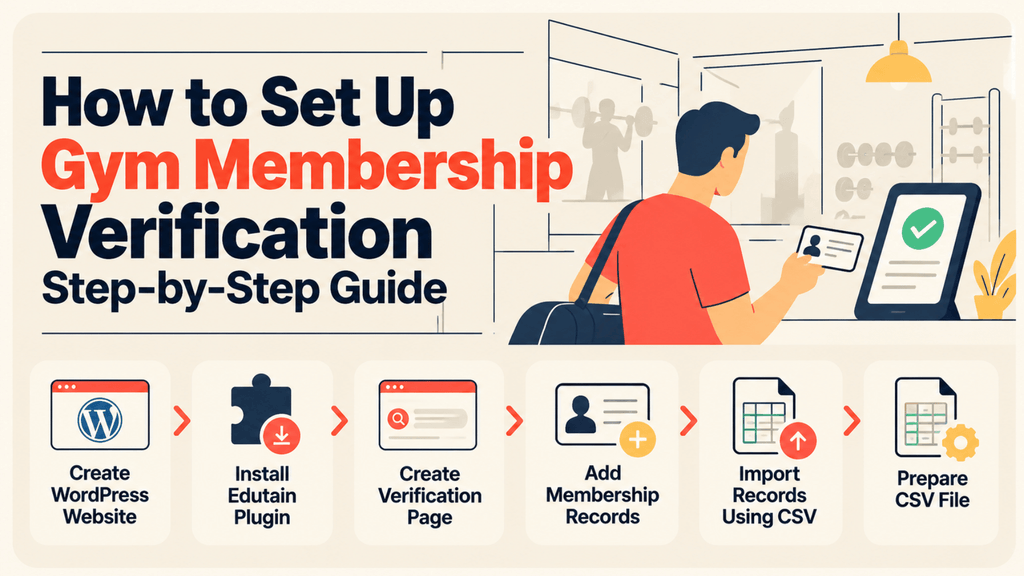
The setup process involves installing the plugin, creating verification records, importing existing membership data, and publishing a verification page.
Step 1: Create a WordPress Website
The first step is having a WordPress website.
WordPress acts as the foundation where your gym membership verification system will operate.
Many gyms already have WordPress websites for:
- Gym information
- Membership enquiries
- Class schedules
- Trainer profiles
- Contact forms
If your gym does not have a website yet, you need to create a WordPress website before installing the verification plugin.
Once WordPress is ready, you can add verification functionality directly to your website.
Step 2: Install Edutain Certificate Validator
The next step is installing Edutain Certificate Validator.
The plugin can be installed directly from the WordPress dashboard.
To install it:
- Log in to your WordPress admin dashboard.
- Go to Plugins.
- Select Add New Plugin.
- Search for Edutain Certificate Validator.
- Click Install Now.
- Activate the plugin.
After activation, the plugin adds the verification tools inside your WordPress dashboard.
For a gym membership use case, the plugin can be adapted by using membership information instead of certificate information.
Edutain Certificate Validator isn’t limited to training certificates. It can also verify membership cards, licences and other records. We’ve explained how to verify membership cards and licences in WordPress, including how custom fields work for different types of records.
The verification records can store details such as:
- Member name
- Membership ID
- Membership type
- Joining date
- Expiry date
- Membership status
Step 3: Create Your Membership Verification Page
After installing the plugin, the next step is making the verification page available.
The plugin creates a verification page that allows visitors to check records using the unique verification information.
This page becomes the public checking point for your gym.
For example, a gym can use this page to verify:
- Active memberships
- Membership IDs
- Member records
- Registration details
If required, the verification form can also be added to another WordPress page using the plugin shortcode.
This allows the verification system to fit naturally into your existing website design.
Step 4: Add Membership Records Manually
For gyms with a smaller number of members, records can be added individually.
Inside the edutain plugin dashboard, administrators can create records manually and enter the required information.
For a gym membership record, you may add details such as:
- Member name
- Membership ID
- Membership type
- Joining date
- Expiry date
- Status
For example:
Member Name: Sarah Williams
Membership ID: GYM-10025
Membership Type: Premium Membership
Joining Date: January 2026
Expiry Date: January 2027
Status: Active
Manual entry is suitable for:
- New gyms
- Small fitness centres
- Businesses adding records gradually
However, gyms with hundreds or thousands of members will usually need a faster method.
Step 5: Import Existing Membership Records Using CSV
Many gyms already have years of membership information stored in spreadsheets.
Moving this information manually would take significant time.
Edutain Certificate Validator allows organisations to import records using a CSV file.
A CSV file allows multiple records to be uploaded at once.
This means a gym can take existing membership data and transfer it into the verification system instead of creating every record individually.
For example, John already had a spreadsheet containing his members’ details.
Rather than manually adding every member, he prepared the file and imported his existing records.
This allowed his old membership information to continue being used.
Step 6: Prepare Your CSV File Correctly Before Importing Membership Records
If your gym already has hundreds or thousands of member records stored in a spreadsheet, you do not need to add every record manually.
Edutain Certificate Validator allows bulk record importing through a CSV file. Before uploading your file, the data needs to be organised correctly so the system can recognise each record.
For a gym membership verification system, you can prepare your records based on the information you want to verify.
A typical membership CSV may include details such as:
| Field | Example |
| Name | David Smith |
| Authentication Code / Membership ID | GYM-2045 |
| Issue Date / Registration Date | 01/01/2026 |
| Expiry Date* | 01/01/2027 |
| Membership Type* | Premium Membership |
| Status* | Active |
*Additional membership-specific fields such as expiry date, membership type, and status can be managed using Pro custom fields and features.
Before importing your CSV file:
- Use clear column headings.
- Make sure required information is included.
- Check that dates follow a supported format.
- Remove unnecessary empty rows.
- Make sure each verification code is unique.
The plugin requires core record information such as a name, issue/completion date, and authentication code for imported records. Optional fields can also be included depending on your setup.
For example, instead of manually entering 5,000 existing gym members, John could prepare his spreadsheet, organise the required information, and upload the CSV file to create verification records in bulk.
After importing, the gym can use these records as the foundation for its online membership verification system.
Step 7: Upload Your Membership CSV File
Once the CSV file is ready, it can be uploaded through the plugin’s data management area.
The import process adds the records into the verification database.
After importing, administrators can review the uploaded records and confirm that the information has been added correctly.
For large gyms, this method is much faster than entering records individually.
Step 8: Add QR Code Membership Verification (Pro Feature)
For gyms that want faster access checking, QR code verification can make the process more convenient.
With the Pro version, QR codes can be generated for verification records.
A QR code can link directly to a specific verification result.
For example:
A gym member receives a membership card containing a QR code.
When they arrive at the gym, staff scan the code.
The verification page opens and displays the membership record.
Staff can check:
- Member name
- Membership details
- Expiry information
- Current status
This creates a quicker verification process at busy reception areas.
Step 9: Activate Pro Licence (Optional)
The free version provides the core verification functionality.
However, gyms that need additional features can activate a Pro licence.
Pro features may include:
- Custom fields
- QR code generation
- Additional record management features
- Expiry management features
To activate Pro:
- Purchase a Pro licence.
- Open the plugin licence area inside WordPress.
- Connect the licence account.
- Activate the licence.
After activation, the additional Pro features become available inside the WordPress dashboard.
Example: A Gym Membership Check in Real Life
A member arrives at the gym reception.
Instead of searching through spreadsheets, the staff member checks the verification record.
If QR verification is enabled, the staff member scans the QR code.
The system displays the membership details.
The team can confirm:
- Who the member is
- Which membership they have
- Whether it is active
- Whether access should be allowed
The entire process becomes faster and more organised.

Avik Sharafat Al Rahman is a blogger who writes about technology. He shares information about new technologies, digital trends, and useful tech tips. He enjoys helping people learn more about the world of technology through his blogs.