Edutain Certificate Validator started life as a certificate verification tool. After a customer asked whether it could handle membership cards instead of course certificates, we made one change that opened the plugin up to almost every document type: the Course Name field is no longer mandatory.
That means you can now issue and verify membership cards, licenses, permits and other non-certificate records from the same dashboard, and add your own custom fields to each one.
Here is how it works, step by step.
What you can verify now
With Course Name optional and custom fields available, you can create a verification record for anything that carries a unique authentication code:
- Library membership cards
- Gym and club memberships
- Professional licenses and permits
- Training authorisations and competency cards
- Staff and student ID cards
- Event passes and accreditation badges
- Any other custom record your organisation issues
For example, gym owners can use these features to manage membership verification without relying on physical cards or manual spreadsheet checks. We explored this in our blog about how to create a digital gym membership verification system, which follows John’s experience of moving his membership records online.
The verification page works the same way for all of them. Someone enters the authentication code, and your record comes back verified.
Step 1: Add a new record
From your dashboard, click Add Record to create a new verification entry.
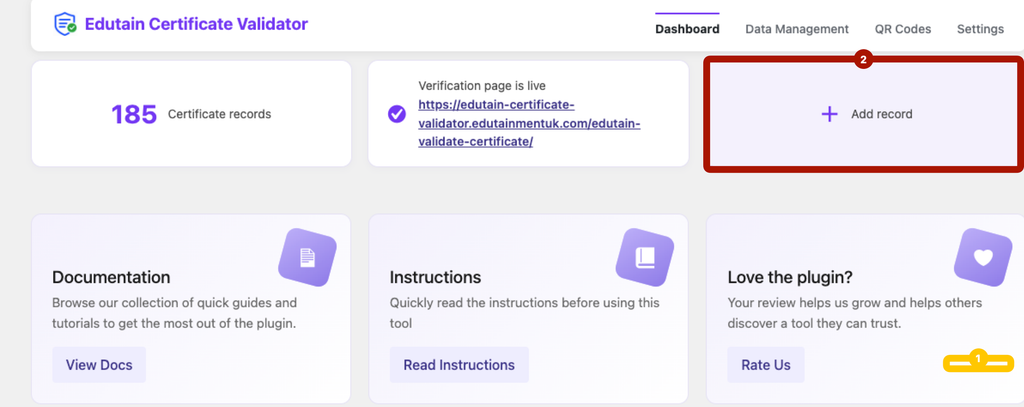
Step 2: Enter document information
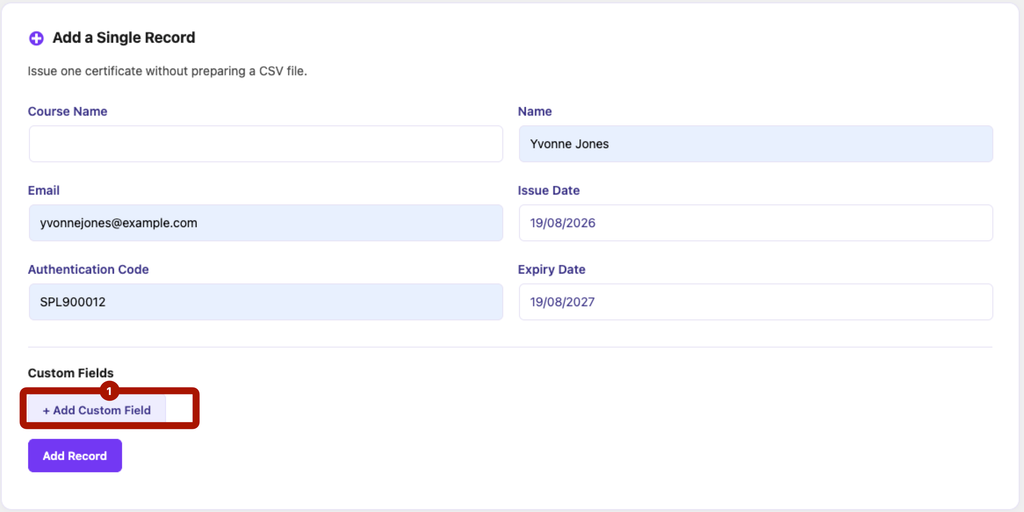
Add the required details and leave the Course Name field blank, as it is no longer a mandatory field.
For example, if you are adding a library membership card, you can enter:
- Card holder’s name
- Email address
- Issue date
- Authentication code
- Expiration date
You can also add additional information by clicking the Add Custom Field button.
Step 3: Add custom fields
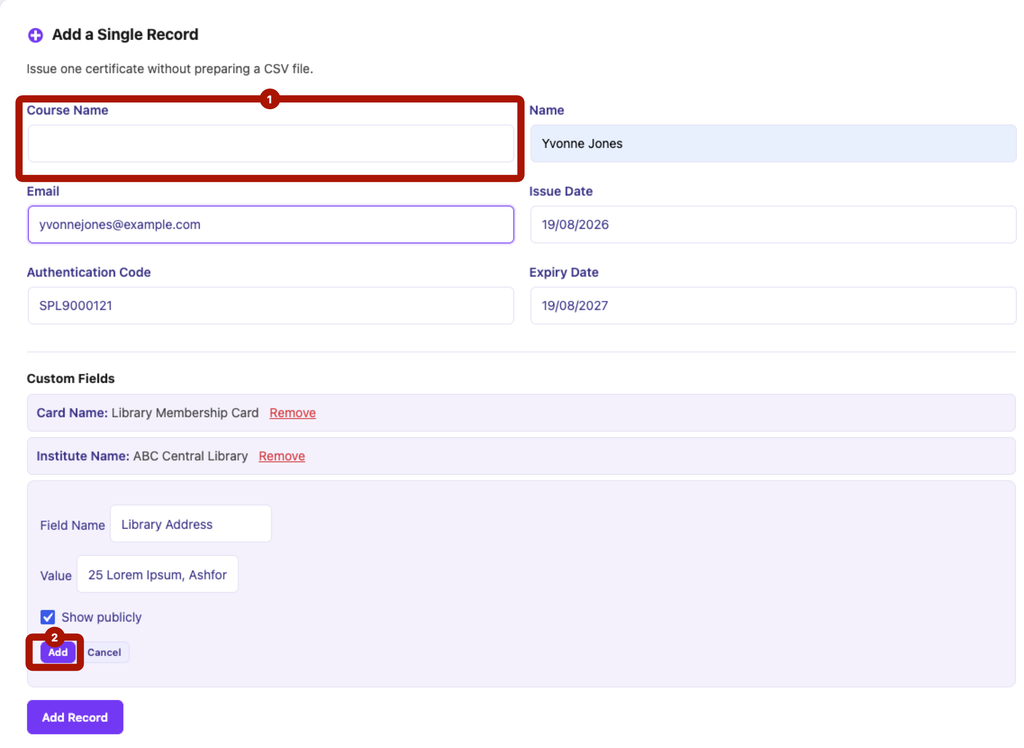
After clicking Add Custom Field, you can enter any additional details specific to your document type.
For example, for a library membership card, you may add:
- Card name
- Institute name
- Institute address
Each custom field has a Show publicly option, so you can control which details appear on the public verification page and which stay internal.
Once all information is added, click Add Record to save the entry.
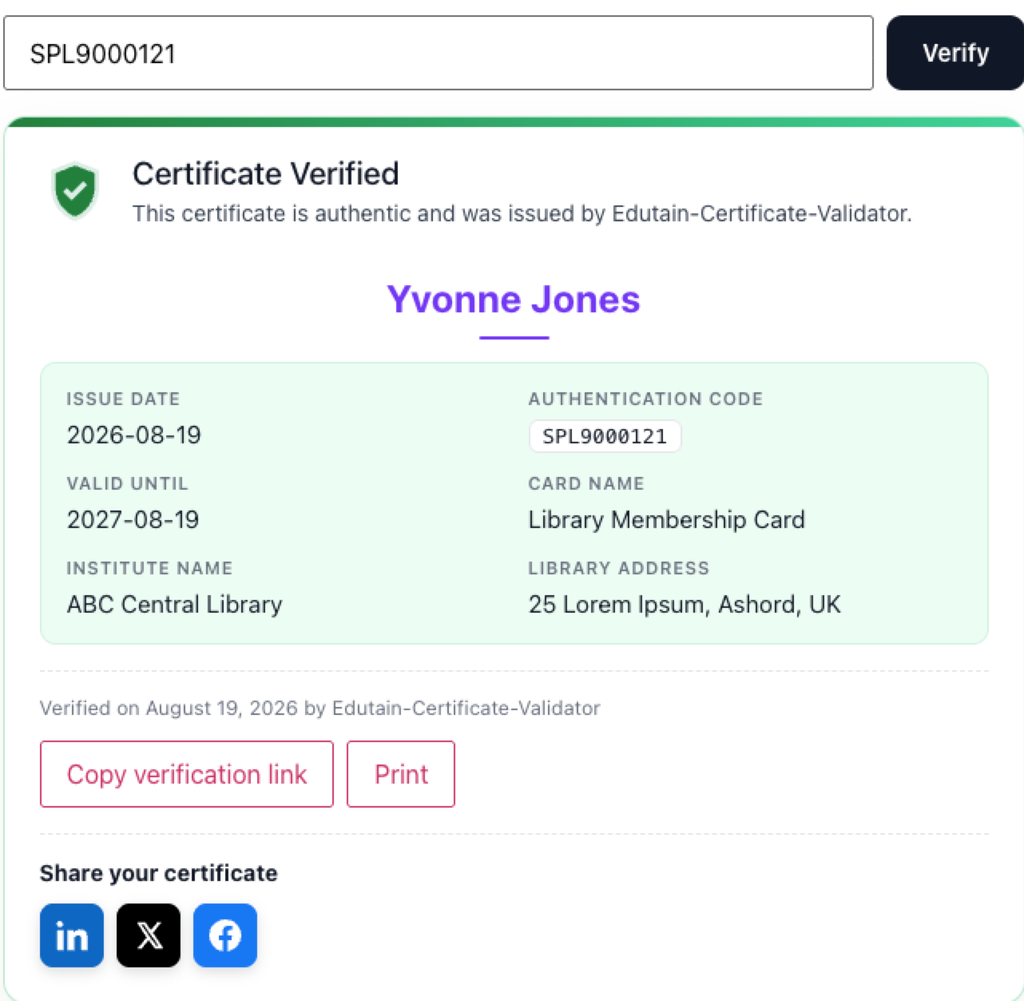
Step 4: Verify the document
After creating the record, you can verify it from the verification page. The system will display the added information in the verification result, including every custom field you marked as public.
Bulk upload records with CSV
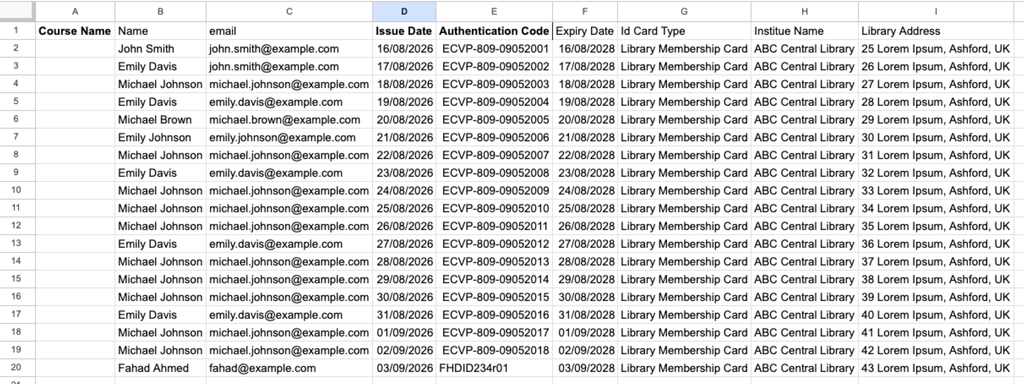
You can also upload records in bulk with custom fields using the CSV upload feature.
While preparing your CSV file, keep the Certificate Name column blank and add your custom columns from column G onwards. Each new column becomes a custom field on the verification result.
Frequently asked questions
Can I verify documents other than certificates?
Yes. Any record with a unique authentication code can be verified, including membership cards, licenses, permits, ID cards and event passes. Nothing about the record has to be education-related.
Is the Course Name field still required?
No. Course Name is now optional. Leave it blank for non-certificate records and the verification page will simply omit it.
How many custom fields can I add to one record?
Add as many as your document needs. Click Add Custom Field once for each extra detail you want to store, then save the record.
Can I bulk upload membership cards using CSV?
Yes. The CSV upload works the same way for cards and licenses as it does for certificates. Leave the Certificate Name column blank for each row.
Which CSV column do custom fields start from?
Column G. Everything from column G onwards is treated as a custom field, and the column heading becomes the field label on the verification page.
Can I hide a custom field from the public verification page?
Yes. Each custom field has a Show publicly checkbox. Leave it unticked to keep the value stored against the record without displaying it to anyone running a verification.
Is this the same as identity or KYC verification?
No. This plugin verifies records that your organisation has issued, by checking a code against your own database. It does not scan government IDs, run biometric checks or perform KYC and AML screening.
Is there a free version?
Yes. Edutain Certificate Validator is free on WordPress.org for standard certificate verification. Custom fields and non-certificate record types are part of Edutain Certificate Validator Pro.
Get started
This change came directly from a customer suggestion, and it made the plugin far more flexible for organisations that issue more than just certificates.
Download the free plugin from WordPress.org, or upgrade to Pro to start verifying membership cards, licenses and any custom document on your own site.

Avik Sharafat Al Rahman is a blogger who writes about technology. He shares information about new technologies, digital trends, and useful tech tips. He enjoys helping people learn more about the world of technology through his blogs.